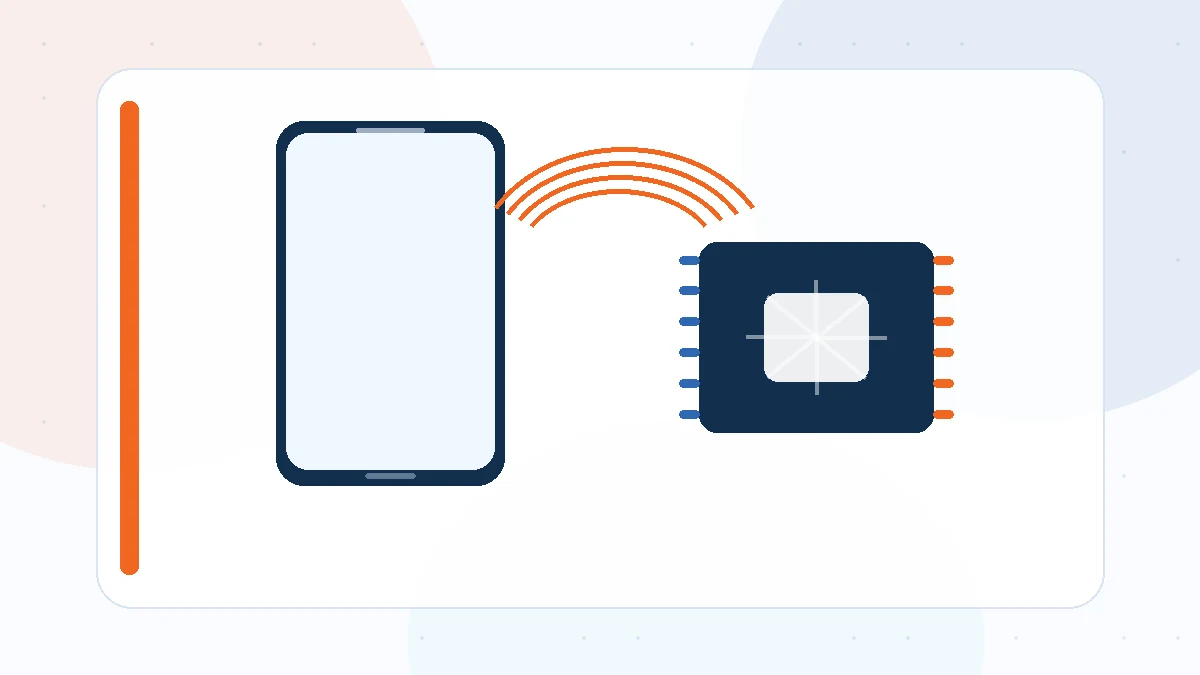
Vivo MTK Driver searches usually come from users trying to connect a MediaTek-based Vivo phone to a Windows PC for service or recovery work. Not every Vivo model uses a MediaTek chipset, so the first step is confirming the hardware platform and the connection mode your workflow requires.
Confirm the device platform
Model families can ship with different chipsets in different regions or revisions. Check the exact model before choosing a driver. Installing a MediaTek package for a non-MediaTek phone will not create a valid connection.
If the device is MediaTek-based, determine whether you need a normal Android USB interface, a bootloader-style interface, or a short preloader connection.
Prepare Windows
Use a driver package compatible with your Windows architecture. On 64-bit Windows 10 or Windows 11, prefer properly signed 64-bit files. Install the package before beginning a time-sensitive connection workflow.
Restarting after installation is a useful step when Windows has previously loaded a different driver for the same hardware.
Connect in the correct state
Some service procedures detect the phone only while it is powered off. Others require a specific key combination. The USB driver cannot force the phone into a mode it is not presenting.
Use a direct USB port and a known-good cable. Watch Device Manager while connecting to see whether a port appears briefly or stays active.
Interpret the result
A healthy port without a warning icon indicates that the Windows side is largely ready. If software still cannot connect, check timing, supported model, and tool configuration next.
If you see an unknown device or driver error, record the hardware ID and error code before replacing drivers. That evidence makes troubleshooting much faster.
Final checklist
Before changing another driver, confirm the Windows architecture, the exact USB mode, a known-good data cable, the Device Manager hardware ID, and any visible error code. A driver is only one layer of the connection, so these checks help you avoid unnecessary reinstallations.
For a broader overview, return to the MTK Driver homepage or review the complete guide library.