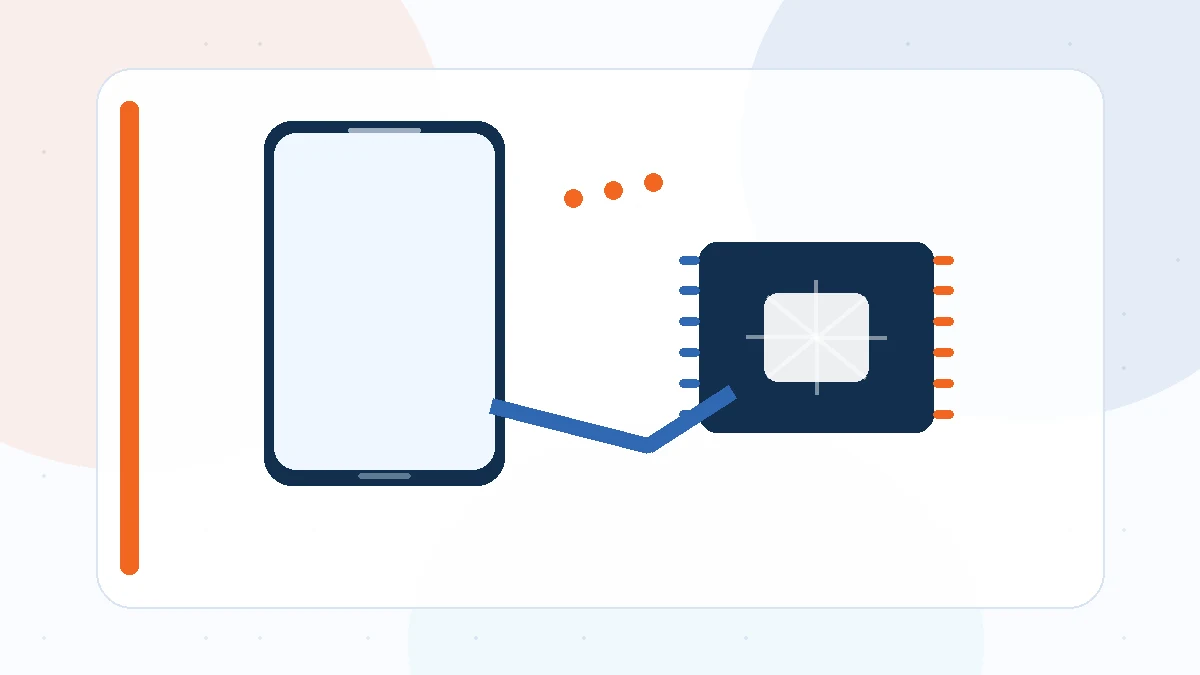
Android MTK Driver is a common search phrase, but the driver is normally installed on the Windows computer rather than on the Android phone. Its job is to help Windows recognize a MediaTek USB interface so supported service, transfer, or maintenance software can communicate with the device.
Understand the USB mode first
Android devices can expose different USB interfaces depending on whether they are fully booted, in recovery, in bootloader mode, or powered off. A driver that works for one interface may not be used by another.
Before troubleshooting, identify the exact connection mode required by the software you plan to use. This prevents you from trying to fix a driver that Windows never has a chance to load.
Use a real data cable
Many inexpensive USB cables provide charging only. A phone may light up and charge while Windows receives no data connection at all. Testing with a known-good cable is one of the fastest ways to eliminate a false driver problem.
Also avoid unstable hubs. A direct USB port on the PC usually provides a cleaner connection for short-lived boot interfaces.
Watch Device Manager while connecting
Keep Device Manager open, then connect and disconnect the phone. Watch which entry appears. A brief port can still be a valid detection event. A warning icon indicates that Windows sees the hardware but cannot load the expected driver.
The hardware ID can help distinguish a MediaTek interface from an unrelated USB device. Record it before making changes.
Separate driver problems from tool problems
If Device Manager shows a healthy device but your application cannot connect, the issue may be the application, device mode, permissions, or timing. Reinstalling the same driver is unlikely to fix a software-side mismatch.
Use the troubleshooting checklist on this site to test the connection in a consistent order before changing multiple variables at once.
Final checklist
Before changing another driver, confirm the Windows architecture, the exact USB mode, a known-good data cable, the Device Manager hardware ID, and any visible error code. A driver is only one layer of the connection, so these checks help you avoid unnecessary reinstallations.
For a broader overview, return to the MTK Driver homepage or review the complete guide library.